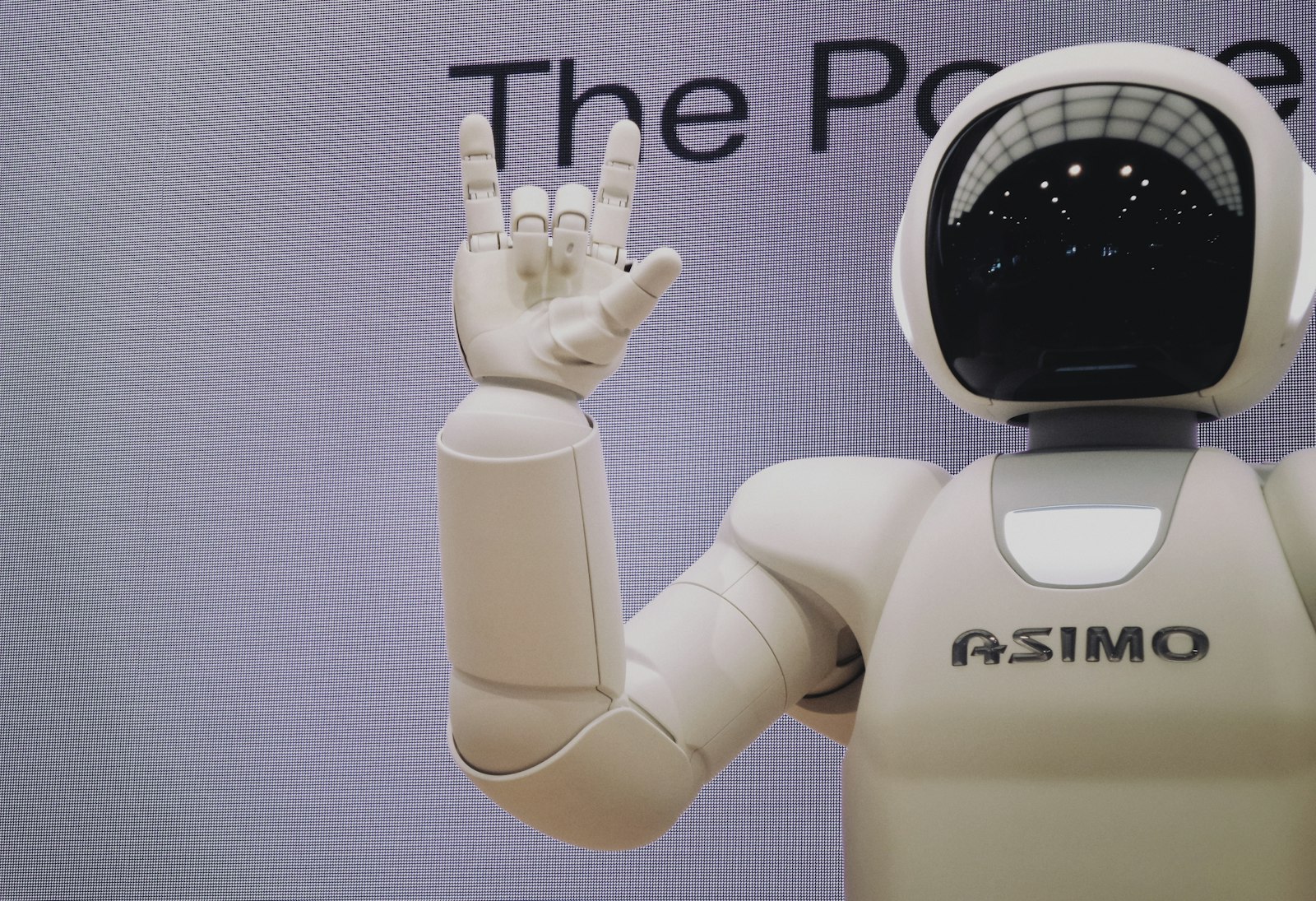
You used to talk to AI assistants the way you talk to a search box: type a question, get an answer, copy-paste what you need, then go do the real work yourself.
That is starting to change—fast.
Over the last year, tools like ChatGPT, Anthropic Claude, Google Gemini, and Microsoft Copilot have quietly added the ability to not just describe work, but actually do work. They can connect to your calendar, draft and send emails, update documents, trigger automations, even move your mouse and type on your screen in some cases. Instead of being a smarter Google, they are evolving into something closer to a junior digital coworker that you can point at a task and say, “Handle this.”
If you feel like you’re only scratching the surface of what these tools can do, you’re not alone. The shift from “chatbot that answers” to “assistant that acts” is happening in pieces and across different ecosystems. Let’s unpack what’s really going on—and what “from text to action” looks like in practice for you.
From answers to actions: what actually changed?
The first wave of mainstream AI assistants was mostly about language: write this email, explain this topic, summarize this report. Power users hacked them into doing workflows (copy this, paste that, follow this checklist), but the tools themselves weren’t clicking any buttons or connecting to your actual apps.
The new wave is different in three big ways:
-
Built-in app connections (extensions/connectors)
- OpenAI now offers “connected apps” in ChatGPT so it can take actions inside services like Google Drive, Gmail, or other third‑party tools after you connect them. You literally pick an app, authorize it, and then tell ChatGPT what you want to do; some actions even pause for your approval before they run.OpenAI Help Center
- Google’s Gemini has Workspace extensions that let it pull from and act on Gmail, Docs, Drive and more directly inside the Gemini app for Workspace customers.Google Workspace Updates
- Microsoft Copilot can connect to external services so it can use that data in responses and actions, based on what you authorize.Microsoft Support
-
“Tool use” under the hood
Modern models like GPT‑4o, Claude 3.5/4.x, and Gemini can be given structured tools (APIs) that they decide to call when needed. That’s how they:- Look up your calendar instead of hallucinating a date
- Trigger a workflow instead of just describing how to do it
- Fetch live data instead of relying on a static training snapshot
-
Full computer control (“computer use”)
Anthropic’s Claude 3.5 and 4.x families go a step further with computer use: the model can see your screen, move the cursor, click buttons, type, scroll, and interact with desktop apps in a browser or OS environment.Anthropic engineering write‑up It’s basically remote control, driven by natural language instructions.
Put together, these shifts move assistants from “smart notepad” to “semi‑autonomous agent” that can carry out multi‑step tasks.
How today’s assistants turn text into tasks
Let’s make this concrete. Under the hood, most modern assistants follow a similar pattern:
-
You describe the outcome, not the steps
You say something like:- “Find a 30‑minute slot next week with Alex, draft an agenda based on our last doc, and send an invite.”
- “Take the numbers from the attached spreadsheet, create a chart, and drop it into a new slide deck with a short summary.”
-
The model breaks your request into sub‑tasks
The assistant implicitly decomposes that into steps: check calendar → find open slot → draft agenda → create event → send invite. Research papers on AI agents show that systems combining this kind of step planning with structured memory and tools significantly improve task success rates on multi‑step benchmarks compared with a single raw model call.KGoT architecture paper -
It chooses which tools or integrations to call
Based on what you asked, the assistant might:- Call a Calendar connector (Gemini/Claude/ChatGPT)
- Use a Workspace/Office integration (Drive, Docs, SharePoint, Outlook)
- Trigger a workflow via Power Automate, Zapier, or a custom API
-
It executes actions, often with checkpoints
For sensitive stuff (sending emails, making purchases, editing files), most systems now either:- Show you a preview and ask for confirmation, or
- Require you to opt in and set permissions up front
-
It reports back in normal language
When it’s done, you’ll usually see something like: “I found a 2–2:30 pm slot on Thursday, created the meeting in your calendar, and emailed Alex with this agenda.”
From your perspective, it feels like one conversation. Underneath, multiple tools and actions are firing in sequence.
Real examples: what these assistants can do today
Here’s how some of the major players are already turning text into action in day‑to‑day workflows:
ChatGPT (OpenAI)
ChatGPT with GPT‑4o and connected apps can, once configured:
- Search, summarize, and update files in Google Drive or other connected services
- Work with email (drafts, summaries, classifications) in supported apps
- Call external APIs you wire up as “actions” for custom automations (e.g., send data to your CRM, create tasks in project tools)OpenAI Actions guide
OpenAI’s help docs emphasize that some actions will explicitly pause and wait for your approval—this is an important safeguard when you’re letting an AI change data in third‑party systems.Connected apps overview
Claude (Anthropic)
Claude’s big differentiator right now is computer use:
- It can open apps, browse the web, manipulate files, and operate dev tools from within a supervised environment.Anthropic product blog
- Under the hood, Anthropic exposes a “computer toolset” that includes actions like screenshot, left_click, type, scroll, etc., so the model can literally operate a GUI the way a person would.Claude computer use docs
In practice, that means you can say things like:
- “Log into this web dashboard, export the latest CSV report, clean it up, and save a summarized version to my project folder.”
- “Open my IDE, apply these code changes, run the tests, and paste the test output back here.”
This is still early tech and usually runs in constrained environments, but it’s a big signal of where assistants are headed.
Gemini (Google)
Gemini’s focus is deeply woven into Google Workspace:
- Workspace extensions in Gemini allow it to access and act on Gmail, Docs, Drive and other Workspace data once your admin enables them.Google Workspace blog
- In practice, that means you can tell Gemini: “Summarize this week’s client emails and draft a status doc in Drive” or “Find the latest version of our Q3 roadmap in Docs and turn it into a slide outline.”
Google has also been pushing Gemini for Workspace customers so that the same assistant can work across chat at gemini.google.com and your documents, using enterprise‑grade data protections.Google product blog
Microsoft Copilot
Copilot is tightly integrated into the Microsoft 365 ecosystem and Power Platform:
- In apps like Outlook, Word, and Teams, you can already ask Copilot to summarize threads, draft replies, and restructure documents.
- With Copilot Studio and Power Automate, you can define custom “Copilot actions” that trigger cloud workflows based on natural language cues—think “When I say ‘log this lead’, push the details into Dynamics and notify the sales channel.”Microsoft Build transcript
In short: Copilot doesn’t just understand your text; it can also reach into your business systems to do useful work, if you’ve wired things up.
Why this matters for your productivity
When assistants can act, not just answer, a few big shifts happen in your day:
-
Fewer copy-paste loops
Instead of bouncing between AI and your tools, you increasingly stay in one place and let the agent hop between apps. -
Less micro‑management of steps
You say “clean up my inbox and surface anything time‑sensitive from finance,” not “filter by this label, then mark as read…” The assistant handles the workflow. -
More leverage on boring work
Repetitive tasks—moving data between systems, formatting reports, generating routine documentation—are exactly the kind of thing computer‑use agents and workflow‑connected assistants excel at. -
Space for higher‑level thinking
The time you save on “glue work” (coordinating, copying, following checklists) can be reinvested in decisions, creativity, and strategy, if you’re deliberate about it.
However, this also raises new questions about trust, oversight, and data boundaries.
Safety, control, and where to draw the line
Handing an AI the keys to your calendar is one thing. Handing it the ability to click buttons on your desktop is another.
The platforms rolling out these features are building in guardrails like:
-
Explicit opt‑in and granular permissions
You have to connect each app (Gmail, Drive, Slack, etc.) and decide what it can see and do. Copilot, for example, lets you choose which services to connect and what data it can access.Microsoft Support -
Human-in-the-loop approvals
ChatGPT’s connected apps can pause an action that requires approval (like sending an email or performing a significant change) and wait for you to confirm.OpenAI Help -
Constrained environments for computer use
Claude’s desktop‑style control is typically run in sandboxed or enterprise‑managed contexts, with logs and controls available to admins to reduce risk.Anthropic engineering blog
On your side, it’s smart to:
- Start with low‑risk tasks (organizing docs, summarizing meetings, drafting content).
- Review what an assistant did until you trust specific workflows.
- Regularly audit which apps and data sources are connected.
You don’t have to go from “no actions” to “full remote control” overnight.
How to start turning text into action in your own work
If you’re ready to go beyond “ask and answer,” here’s a practical way to get started:
-
Pick one assistant to go deep with
Don’t try to master everything at once. Choose:- ChatGPT if you like custom GPTs and broad third‑party app integrations
- Claude if you’re excited by computer use and deeper reasoning
- Gemini if you live in Google Workspace
- Copilot if your world runs on Microsoft 365 and Power Automate
-
Connect just 2–3 critical apps
For most knowledge workers, that’s usually:- Email/calendar
- Docs/Drive or OneDrive/SharePoint
- One project/task tool or CRM
Follow the official setup guides (OpenAI Help, Anthropic docs, Google Workspace blog, Microsoft Support) so you understand permissions as you go.
-
Define 3 repeatable tasks to offload
Look for things you do weekly or daily that follow a pattern, such as:- “Summarize yesterday’s meetings and turn them into task lists.”
- “Create a weekly report from this spreadsheet and email it to the team.”
- “Scan my inbox for anything related to [client] and draft replies.”
Turn each into a natural‑language instruction and refine it over a week or two. Many tools will let you save these as “skills,” “Gems,” or workflows once you’re happy.
-
Gradually increase autonomy
Start with: “Draft but don’t send.”
Then move to: “Perform this action, but show me a log.”
Only when you’re confident should you allow fully automated actions for specific, low‑risk workflows.
As AI assistants evolve from text boxes into action-takers, the biggest opportunity is not to let them run your life—it’s to let them run the parts of your work that don’t actually need you.
Over the next year or two, the people who get the most out of these tools won’t just be the best prompt‑writers. They’ll be the ones who treat AI like a junior teammate: connected to the right systems, given clear responsibilities, and trusted to handle the boring but essential tasks that keep everything moving.
Your next steps:
- Choose one assistant (ChatGPT, Claude, Gemini, or Copilot) and connect it to just your calendar and docs this week.
- Write and test three specific “do this for me” prompts for tasks you repeat often—then save them as reusable workflows where your tool allows.
- At the end of the month, review what tasks the assistant actually handled for you and deliberately add one more higher‑value workflow to its plate.
That’s how you move from chatting with AI to actually working with it.